How to import your Goodreads library into Basil & Page
Bring your Goodreads books to Basil & Page with a CSV export. Learn what transfers, review your import, and check your reading history before settling in.
Your reading history does not have to start over when you try a new book tracker. You can bring your Goodreads books into Basil & Page using a CSV file, a spreadsheet-style export of your library. Goodreads import is included in the Free plan.
You download the file from Goodreads, choose it in Basil & Page, and review the preview before importing. This is a file import, not an ongoing sync between the two services. You do not need to share your Goodreads password with Basil & Page.
Before you begin
Keep an untouched copy of your Goodreads export. The current importer accepts a CSV smaller than 2 MB with up to 2,000 book rows per import. If your library is larger, use copies split into smaller CSV files, each retaining the original column headings. Keep quoted fields and multiline reviews intact; do not split the file by simply cutting lines of text.
Not every part of a Goodreads account transfers. Check the list below before deciding whether the imported library meets your needs.
1. Download your Goodreads library
Sign in to the Goodreads website in your browser. Open My Books, find Import and export under Tools, and choose Export Library. Once Goodreads has prepared the export, use the download link to save the CSV file.
You can also open Goodreads’ import and export page directly while signed in. If the export takes time, return to that page to check whether the download is ready.
Keep the original CSV format. Opening and resaving it in a spreadsheet can change ISBNs or dates.
2. Open import options in Basil & Page
Create a free Basil & Page account, or sign in to your existing account.
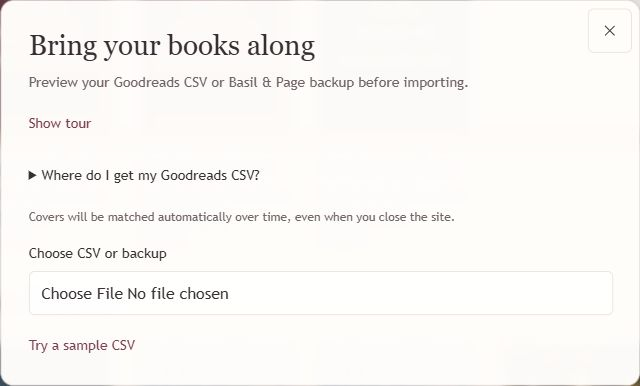
Open My library, then select Import books. You can also find Import options under Manage library in the account menu. Select Choose CSV or backup and choose your Goodreads CSV. Selecting the file prepares a preview; it does not immediately add the books to your library.
If you would like to explore the flow first, choose Try a sample CSV. The sample still requires your confirmation before it is imported.
3. Review your books and optional shelves
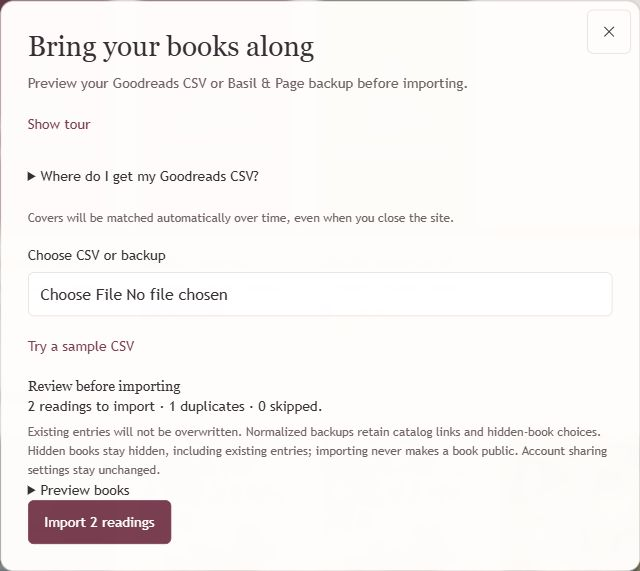
Under Review before importing, check the number of readings to import, duplicates, and skipped rows. Open Preview books to inspect the first 20 readings and their reading statuses.
If your CSV contains custom shelf names, you can select Create or update my custom shelves from this Goodreads CSV. This option is off by default. Review the shelf list before enabling it: matching names combine with your existing shelves and keep their books. Reading statuses remain separate from custom shelves. Your account’s shelf limits still apply.
When the preview looks right, select Import, followed by the number of readings shown on the button. Wait for the completion message before checking your library.
What transfers?
The importer reads these fields when they are present and valid:
- Book title and author.
- ISBN and page count.
- Reading status from the Goodreads Exclusive Shelf: to-read, currently-reading, or read.
- Your numeric rating.
- The finish date in Date Read.
- Custom shelves, if you select the optional shelf import.
What doesn’t transfer?
- Written reviews and private notes.
- Date Added and current page progress.
- Detailed reread history.
- Friends, followers, and Goodreads account settings.
Keep your original export for anything you may want to refer to or copy manually.
A finished book without a valid finish date can still appear as finished, but it will not count toward a dated annual reading goal until you add the date. Importing does not reconstruct a separate reading attempt for every past reread.
4. Check your library after the import
Open a few books you know well: one you finished, one you are reading, and one you want to read. Check their titles, authors, ratings, and finish dates. Review any custom shelves you chose to bring over.
Book covers are matched separately and may take time to appear. A missing cover does not by itself mean the reading record failed to import.
Existing entries are not overwritten by an import. Matching entries may be skipped as duplicates, so the number added can be smaller than the number of rows in your file. Importing also does not publish your books or change your account sharing settings.
If something does not look right
The file is rejected: confirm it is a CSV under 2 MB, has no more than 2,000 book rows, and includes Title and Author column headings. Try an untouched export if a spreadsheet has changed the file.
Some books were skipped: missing titles or authors, invalid page counts or ISBNs, unfamiliar reading statuses, or a row whose columns do not match the header can prevent import. Compare your source file with the preview before retrying.
A finish date is missing: check Date Read in the original export. A date that is absent or invalid cannot be recovered by the importer; add the correct date to the book yourself if you know it.
You want to undo the batch: return to Import options, expand Import history and undo, and choose Undo import for that batch. Readings edited or placed on custom shelves since import are kept. Undo is not a complete reset of every later change.
If you still need help, contact hello@basilandpage.com with the error message. Start with the message rather than sending your entire reading history.
Make yourself at home
Once you have checked your import, choose your current book and continue from there. You can add private notes, arrange your shelves, and keep track of what you want to read next.
Conversation (0)
Comments are public and reviewed before appearing. Be kind and keep private information out of your comment.
No approved comments yet. Your thoughts are welcome.
Sign in to join the conversation